
This is the CRM’s actual Book Appointment window. On the left: calendar, team member, time zone, date and slot. On the right: contact selection and internal notes.
In your workspace
Calendars → Calendar View → New → Book Appointment
Follow this guide with interactive screenshots

Before you start
- Prepare the contact, service, intended duration and person handling the appointment.
- Confirm the day, time and time zone with the customer.
- Look for an existing appointment before adding a new one.
- Check the contact details used for confirmations, if configured.

Check the result
The appointment appears on the correct date, with the right contact and duration.
Open Calendars → Calendar View, then click “New” in the upper-right corner. In Book Appointment, keep the Appointment tab selected; the other tab is for blocking time.
Choose the creation type
- Open the correct date in Calendars and click New.
- Use Appointment for a customer; the blocked-time tab is for unavailability.
To correct an existing booking, open it instead of creating a second one.

Select the service in Calendar. Check the Appointment Title and Team Member. On the right, use Select Contact to search by name, email or phone.
Link the booking
- Choose the calendar for the service and check the team member.
- Select the correct contact and review the intended title and location.
An internal note should not be the only way you communicate an instruction to the customer.
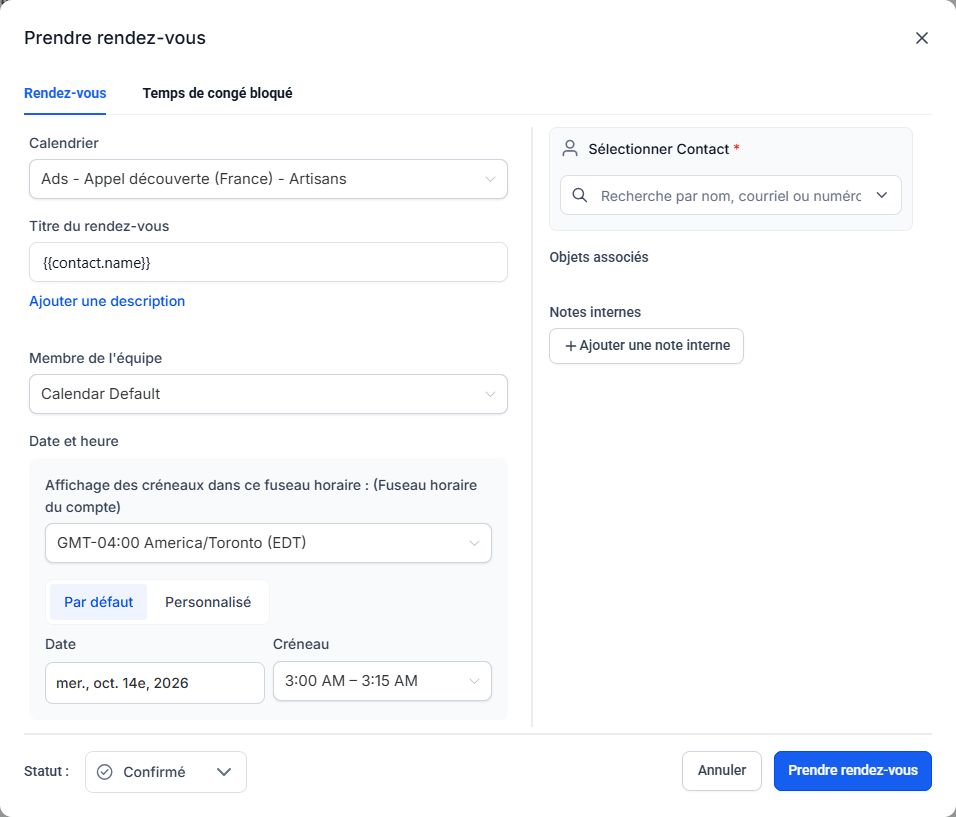
Under Date and Time, check the time zone, then Date and Slot. Default uses calendar availability; Custom lets you specify a time. Check the meeting location if needed.
Validate the actual slot
- Check the time zone, date, start time and booking duration.
- Use the offered slots; if entering a custom time, check for conflicts before confirming.
Screenshot times come from a test account; they are not recommended booking times.
Check Status at the bottom-left, then click Book Appointment at the bottom-right. Verify the booking in the calendar. To reschedule or cancel it, open the existing appointment rather than creating a second booking.
Create, then verify
- Review the status and click Book Appointment.
- Find the booking in the calendar and open it to check the contact and slot.
Creating a booking does not guarantee receipt of a confirmation; sending depends on configuration.
Frequently asked questions
No slots are offered.
Check the calendar, person, availability and conflicts. Read the availability guide before forcing a custom time.
The time seems shifted.
Compare the calendar time zone, the time zone shown in the booking and the one agreed with the customer.
I selected the wrong contact.
Open the appointment and check the available correction options. If a message was already sent, ask Clevoxa to check subsequent workflow actions.
How do I reschedule an appointment?
Open the existing booking, use the available edit option, update the slot and save. Check the new time and notification history.
How do I cancel an appointment?
Open the existing appointment and use the available cancellation action or status. Then check the booking state and configured notifications.
The customer did not receive confirmation.
Check the contact details and conversations. Ask Clevoxa to inspect the workflow if the expected confirmation is missing.
Two bookings are present.
Compare contacts and times before cancelling anything. Have reminders checked to avoid leaving a workflow linked to the wrong booking.
Is a reminder still scheduled after rescheduling?
That depends on the configured workflow. Have upcoming actions checked if unsure; do not assume a reminder was automatically cancelled or moved.
An example to adapt
Alex books a 30-minute discovery call for Thursday at 2 p.m., Quebec time. I check the “Discovery call” calendar and time zone before saving.
If it does not work
No available slot for a customer? Read the availability guide. Missing a confirmation? Check the contact details and configuration with Clevoxa.
Check and understand the result
Booking
The appointment exists in the correct calendar.
Schedule
Date, time, duration and time zone match the agreement with the customer.
Communication
Confirmation or reminder delivery is checked separately in the history.
A complete example, from start to finish
- Alex agrees to a call on Thursday at 2 p.m., Quebec time.
- I select Alex’s contact and the service calendar.
- I check the time zone and duration, then create the booking.
- If Alex asks to reschedule, I open this appointment to update it and verify the new time.
What to include when asking for help
Provide the calendar, contact, old and new times, including the time zone. Specify whether the issue involves creation, rescheduling, cancellation or a missing confirmation.
Checkboxes are saved only in this browser. They do not perform any action in your CRM.
Open my workspace