
The CRM manages shared schedules in Availability. A schedule may apply to several calendars; check those links before changing its working hours.
In your workspace
Calendars → Calendar Settings → Availability
Follow this guide with interactive screenshots

Before you start
- Write down regular working hours, breaks and any exceptional dates.
- Identify the person and calendar concerned.
- Check whether several calendars share the same schedule.
- Keep the booking link available to check the customer-facing result.

Check the result
The linked calendar shows the intended slots and respects your exceptions.
In Calendars, click Calendar Settings, then Availability. Select the user and schedule. “Active on” shows which calendars use that schedule.
Check what the change affects
- Select the user and schedule under Availability.
- Read Active on to see which calendars use that schedule.
A shared schedule can affect several services.
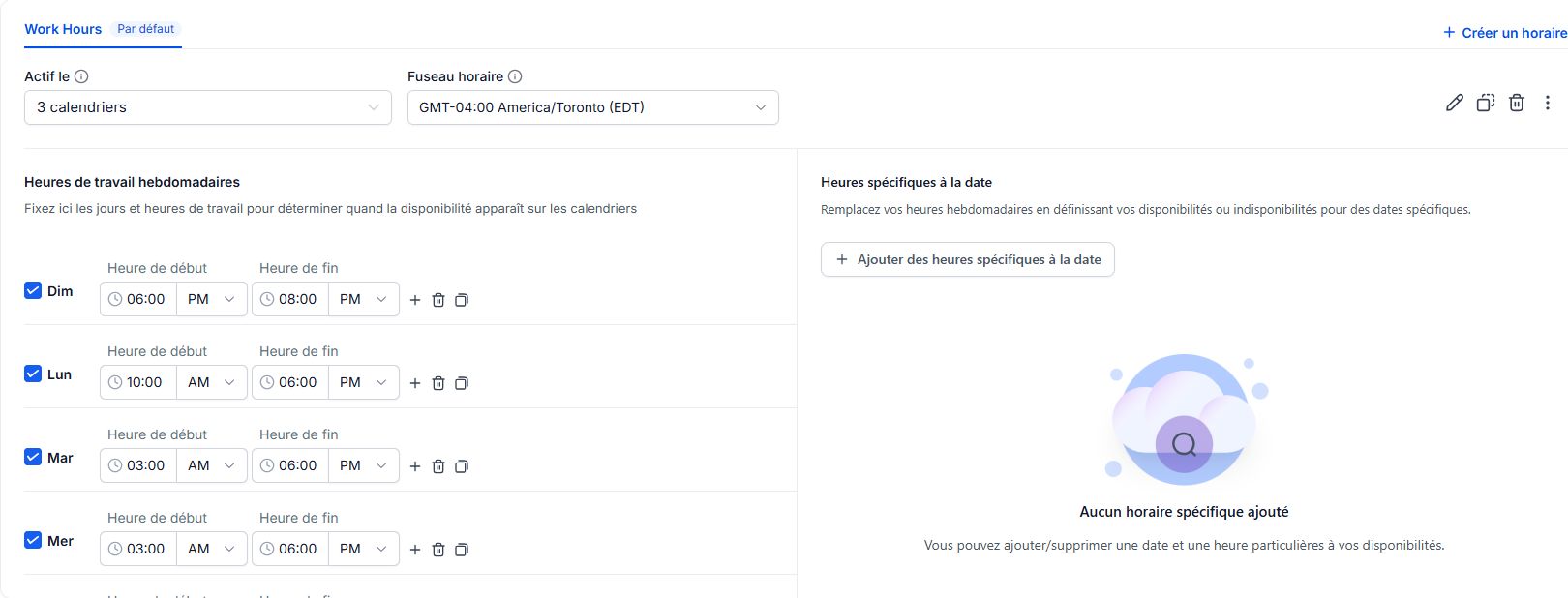
Check the Time Zone. Under Weekly Working Hours, enable working days and set Start Time and End Time. Check AM/PM carefully. Use + to add another interval, for example after a lunch break.
Enter hours and breaks
- Enable working days and check every start and end interval.
- Add two intervals to preserve a break, such as 9 a.m.–noon and 1 p.m.–5 p.m.
Check AM/PM: 9 PM means evening, not 9 in the morning.
Under Date-Specific Hours, click Add Date-Specific Hours. Use this for a closure or a one-off schedule instead of changing the whole regular week.
Handle a specific day
- Use Date-Specific Hours for the exceptional day.
- Check the selected date and intended intervals or closure before saving.
Do not change the whole weekly schedule for one day off.
Click Save changes in the upper-right corner. Open your booking link as a customer and check the available slots. The booking link is available in the calendar options under the Calendars tab.
Check the public link
- Save changes and open the correct calendar link in another tab.
- Compare a normal day and the exceptional date, using the customer-facing time zone.
Viewing available slots is enough for this check; do not complete an unnecessary test booking.
Frequently asked questions
Hours changed on several calendars.
Check Active on: those calendars may share a schedule. Confirm the intended setup before changing it again.
My break is still bookable.
Check that intervals are separated and the correct schedule is linked to the calendar shared with the customer.
My day off appears available.
Check the exception date, the calendar being viewed and whether changes were saved.
Why are some slots missing during working hours?
Duration, booking limits, buffer times and connected calendars can reduce available slots. Have these settings checked if needed.
The customer sees a different time.
Compare displayed time zones. The same moment can be shown as different local times.
Which link should I share?
Use the booking link for the intended service calendar. Open it to check the name and slots before sharing it.
Does changing hours reschedule existing appointments?
Do not treat this setting as a rescheduling command. Check existing bookings separately and handle any that need changing.
I cannot save the settings.
Look for a validation error, then check permissions with Clevoxa if the button or tab is missing.
An example to adapt
I work Monday to Thursday, 9 a.m. to noon and 1 p.m. to 5 p.m. For a day off, I add an exception rather than changing the entire week.
If it does not work
Unexpected time slots? Check the time zone, exceptions, booking limits and connected calendars. Contact Clevoxa if you cannot access the settings.
Check and understand the result
Regular schedule
Days and intervals define your normal week.
Exception
A particular date uses its specific schedule.
Bookable slot
The result also depends on calendar constraints and conflicts.
A complete example, from start to finish
- I work 9 a.m.–noon and 1 p.m.–5 p.m., Monday to Thursday.
- I enter two intervals to preserve the lunch break.
- I add an exception for my next day off.
- I save and view the booking link to compare both situations.
What to include when asking for help
Provide the user, calendar, link viewed, date, time zone and expected or missing slots. Specify whether several calendars are affected.
Checkboxes are saved only in this browser. They do not perform any action in your CRM.
Open my workspace