
Access determines what a person can view or change. Ownership identifies who handles a record. A notification alerts someone to an event. These are three separate settings.
In your workspace
User → role and ownership → notification preferences
Follow this guide with interactive screenshots
Before you start
- Identify the person and business concerned.
- Define the required action and expected notification channel.
Check the result
Check the result in your workspace. The guide does not perform these actions for you.
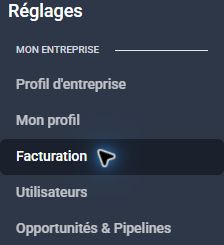
Sign in with your own credentials and check the business. If a feature is missing, tell Clevoxa which menu and action you need. An authorized administrator can review roles and permissions in team settings.
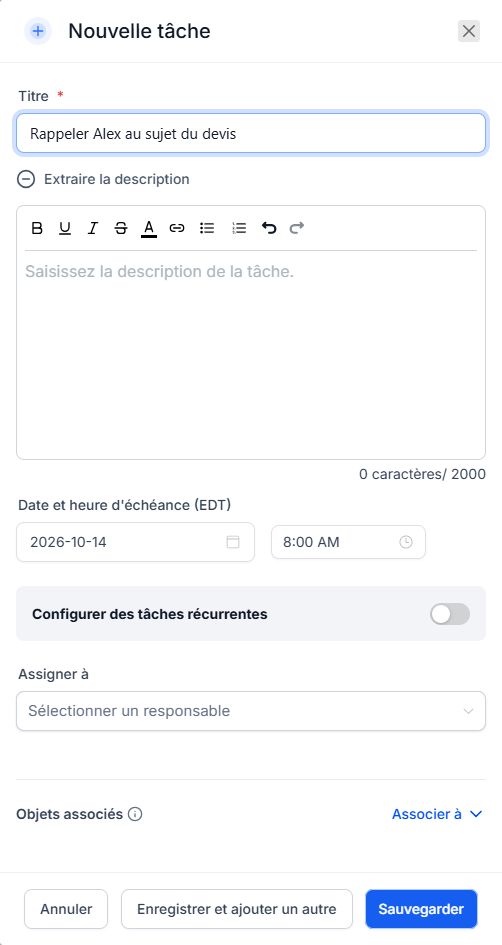
In a task or opportunity, check the assignee or owner. Choose the person responsible for follow-up and check filters when looking for their records.
In Settings → My Profile → Notifications, open the relevant category and check the selected channels: in-app, email or text message. These personal alerts are separate from customer confirmations. On your phone, also check device permissions.
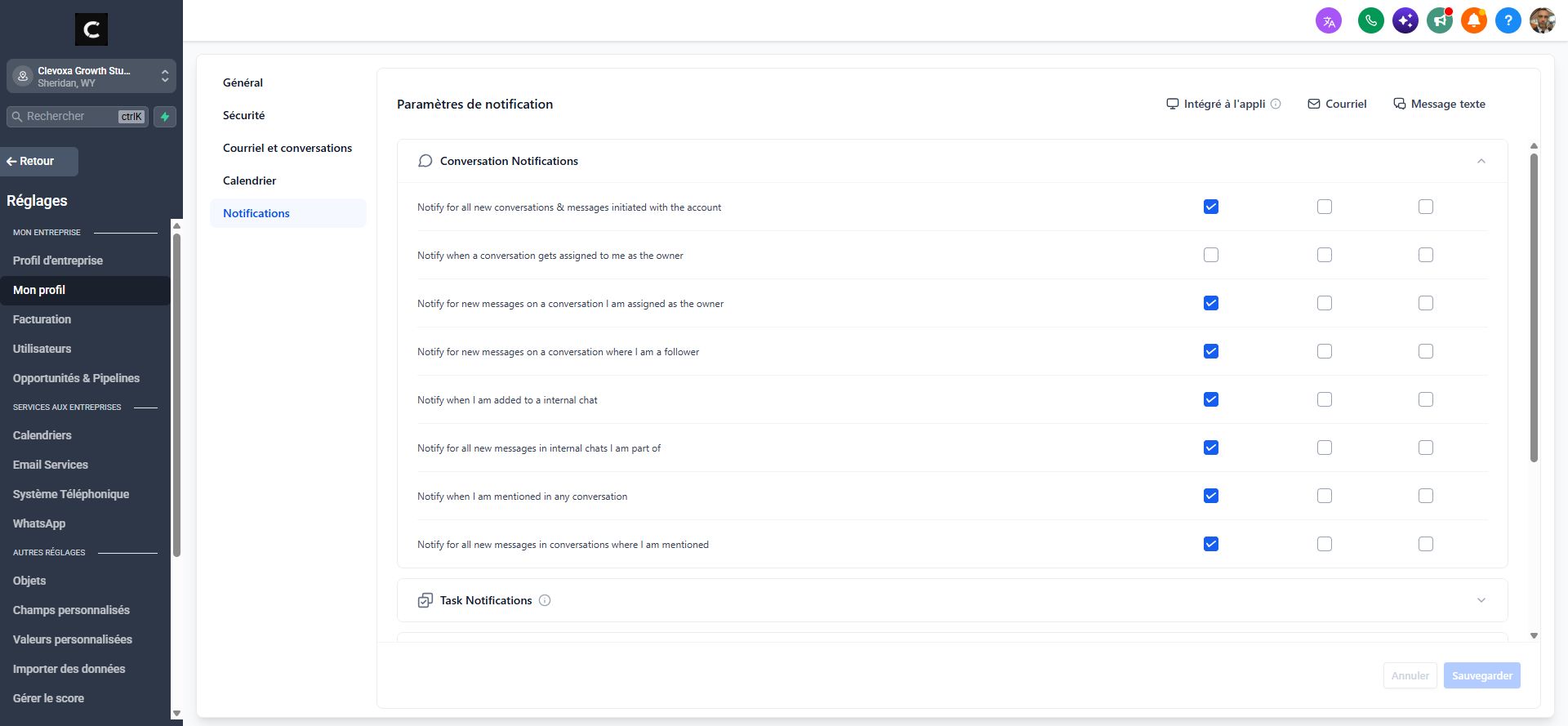
Use a specific real event: appointment created, message received or task assigned. Note who should have been alerted and on which channel. Compare the account record with received alerts before requesting a correction.
Frequently asked questions
A colleague sees fewer contacts than I do.
Permissions may limit visibility to assigned records. Also check filters and the selected business with an administrator.
Does ownership grant all permissions?
No. Record ownership and access permissions are separate.
Do customers receive my internal notifications?
Recipients and channels must be checked in settings. Do not confuse a team alert with a customer confirmation.
Someone leaves the team.
Notify Clevoxa or your administrator to review access, then reassign follow-ups to the appropriate people.
I receive too many notifications.
Identify duplicate events and channels before changing preferences. Keep alerts needed for your role.
An example to adapt
A task is assigned to my colleague. I check that her access lets her see it, then we separately check the expected reminder.
If it does not work
Use the guided troubleshooter or prepare a support request from the current step.
Keep the right distinction
Access
What the person can view or change.
Owner
Who should follow up on the record.
Notification
Who receives an alert, on which channel.
Your next action
- Use a specific real event: appointment created, message received or task assigned. Note who should have been alerted and on which channel. Compare the account record with received alerts before requesting a correction.
Get help with your situation
Use “Help with this step” to prepare an email including the guide and step. Add the details of your issue before sending.
Checkboxes are saved only in this browser. They do not perform any action in your CRM.
Open my workspace