
Use the mobile access provided by Clevoxa for your account. If you have not received an app link, request it; you can also open app.clevoxa.com in your browser. Available features depend on your access and version.
In your workspace
Mobile access supplied by Clevoxa → business → menu
Follow this guide with interactive screenshots
Before you start
- Have a network connection and your personal sign-in ready.
- Use the app link supplied for your account rather than choosing an unrelated app.
Check the result
Check the result in your workspace. The guide does not perform these actions for you.
Open the supplied access, sign in and check the selected business. If several accounts are available, select the one associated with the customer.
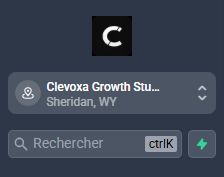
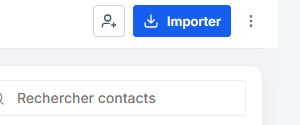
Open Contacts in navigation, then search by name, email or phone. Open the record and check identity before changing contact details or a tag.
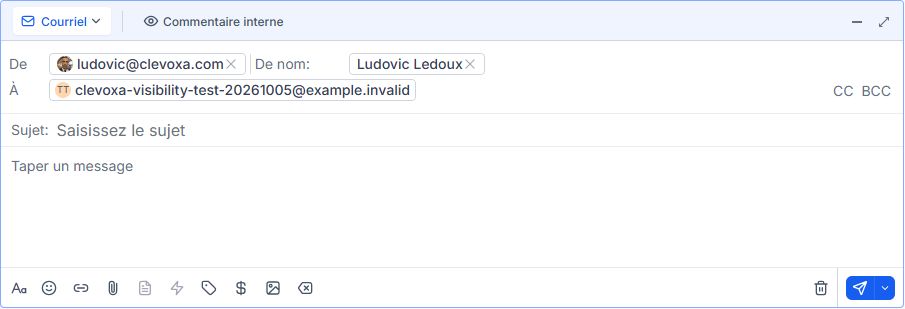
Open the contact’s thread, read recent exchanges and choose the channel. Check the recipient and review the text, including keyboard autocorrections, before sending.
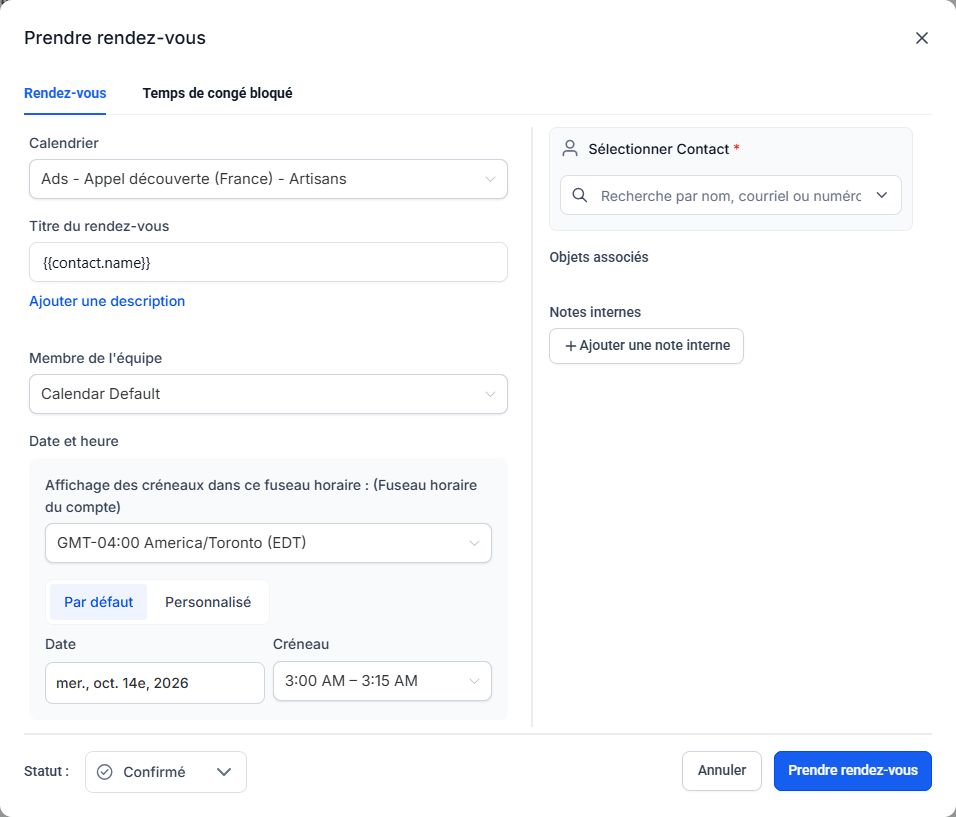
Open Calendars, select the date and open the appointment. Check the contact, time and time zone. If editing is not offered in your version, use the desktop workspace or contact Clevoxa.
Frequently asked questions
Which app should I install?
Ask Clevoxa for the link matching your account. This guide does not assume an app named Clevoxa is available in your app store.
Menus are in different places.
Phone navigation may be grouped in a menu. Look for the feature name; screenshots in other guides show the desktop interface.
I receive no notifications.
Check phone notification permissions, focus mode, connection and account preferences. In a supported app, the notification diagnosis in settings can help identify the issue.
Can I work offline?
Do not assume an offline change was saved. Once connected, check for the action in the account before repeating it.
An example to adapt
While away, I find Alex, read the message and check the appointment before replying.
If it does not work
Use the guided troubleshooter or prepare a support request from the current step.
Keep the right distinction
Access
The business and permissions must be correct.
Connection
Verify saves after a network interruption.
Alerts
The account and phone have separate settings.
Your next action
- Open Calendars, select the date and open the appointment. Check the contact, time and time zone. If editing is not offered in your version, use the desktop workspace or contact Clevoxa.
Get help with your situation
Use “Help with this step” to prepare an email including the guide and step. Add the details of your issue before sending.
Checkboxes are saved only in this browser. They do not perform any action in your CRM.
Open my workspace