
To add a contact, use the person + icon to the right of the list tabs. The “+ Add” control among the tabs creates a list, not a person.
In your workspace
Contacts → Smart Lists → person + icon
Follow this guide with interactive screenshots

Before you start
- Gather the first name, last name and contact details the person actually provided.
- First search for an existing record by email or phone.
- Check the selected business before creating the record.
- Prepare a short note about the need and next action, without unnecessary information.
Check the result
Search shows a single record with the correct name and contact details.
Open Contacts → Smart Lists. Use “Search Contacts” to search by name, email or phone. If the record exists, click the name instead of creating another record with a separate history.
Avoid duplicates
- Try the exact email, then the phone number or name if no result matches.
- Compare contact details, not just names, when several people appear.
Reusing the correct record keeps conversations together.
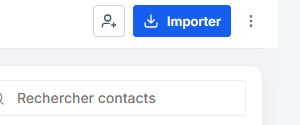
Click the person + icon just before “Import”. The Add Contact panel opens on the right. Do not confuse this with “+ Add” in the list tab row.
Open the correct form
- Find the person + icon just before Import.
- Check that the panel is titled Add Contact before entering data.
The add-list button does not create a customer record.
Enter First Name, Last Name and Email. For phone numbers, select the country and check its code. DND blocks communication on the selected channel; respect the contact’s preferences. Alex Martin is a fictional example.
Enter usable contact details
- Keep first and last names separate and check the email for typos.
- For phone numbers, check the country and country code; preserve appropriate DND preferences.
Do not replace an unknown contact detail with invented information.
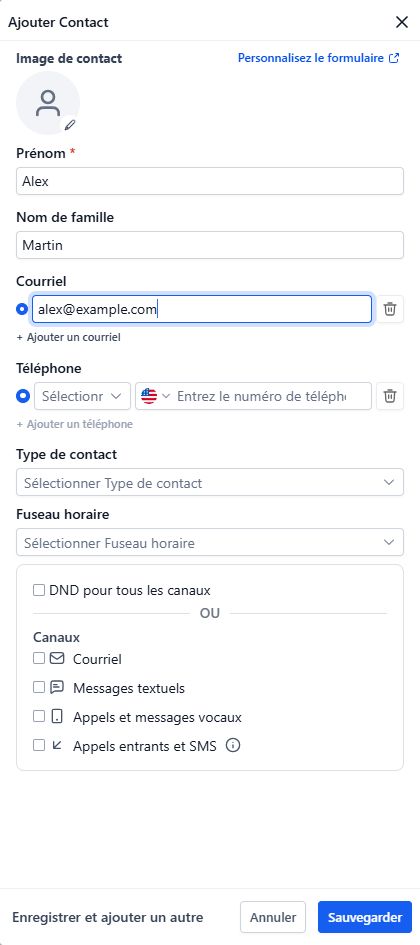
Review the details, then click “Save” at the bottom-right of the panel. Search again to find the new record. “Save and add another” lets you create several records in sequence.
Check the saved record
- Click Save, then search for the person in the list.
- Open the record to review the details and confirm the correct history.
If a field is incorrect, update the existing record rather than creating another.
Frequently asked questions
Search finds no one.
Remove unnecessary filters, check the account and try another contact detail. Create the record only after checking.
Two records seem identical.
Compare their details and histories. Have Clevoxa check duplicates before merging or deleting anything.
I do not have the customer’s email.
Enter only known details and follow the form’s required fields. Sending an email requires a valid address.
The phone number is rejected.
Check the country, country code and entered digits. Note the validation message if the issue persists.
What does DND mean?
DND is a communication restriction for a channel. Check the contact’s preferences and do not disable it to override an opt-out.
The new record cannot be found.
Check whether the form reported a required field or error. Then search by exact contact detail without restrictive filters.
The customer changed their contact details.
Open the existing record, update the relevant field and verify the save. Avoid creating a new record for this change alone.
Is adding a tag just a label change?
Some tags trigger an automation. For example, avis-google starts your review request. Check a tag’s purpose before adding it.
An example to adapt
Alex Martin asks for a quote. I search for alex@example.com, create a record if needed and note: “Please call Thursday afternoon to discuss the request.”
If it does not work
Two records for the same person? Check the details before merging them. Ask for help if their histories differ.
Check and understand the result
Identity
The first and last names identify the correct person.
Contact details
The email and phone number have been checked.
History
The selected record holds the customer’s history.
A complete example, from start to finish
- Alex requests a quote and provides an email address.
- I search for that address before creating anything.
- If no record matches, I add the contact with the provided details.
- After saving, I find the record and prepare a follow-up task.
What to include when asking for help
Specify the record you need, the filters used and the problem. For duplicates, identify both records and the differences you noticed.
Checkboxes are saved only in this browser. They do not perform any action in your CRM.
Open my workspace