
The CRM has a real message composer with the channel, From and To fields, an email Subject, attachment tools and a send button. The screenshot comes from a technical test record.
In your workspace
Conversations → contact → Email / SMS → composer
Follow this guide with interactive screenshots
Before you start
- Check the contact and read recent exchanges, including your team’s messages.
- Choose a channel that matches the recipient’s details and preferences.
- Prepare any document you need to attach.
- If automated follow-up is expected, check its progress before sending the same request manually.

Check the result
Your reply appears in the correct thread, on the right channel, with no displayed error.
Click Conversations in the sidebar. Select “Unread” or “All” in the inbox, then the contact. Read recent exchanges first to avoid repeating a follow-up already sent.
Read before replying
- Open Unread for new exchanges or All to find a previously viewed thread.
- Check the contact’s name and latest incoming message.
A recent reply from a colleague may already have addressed the request.
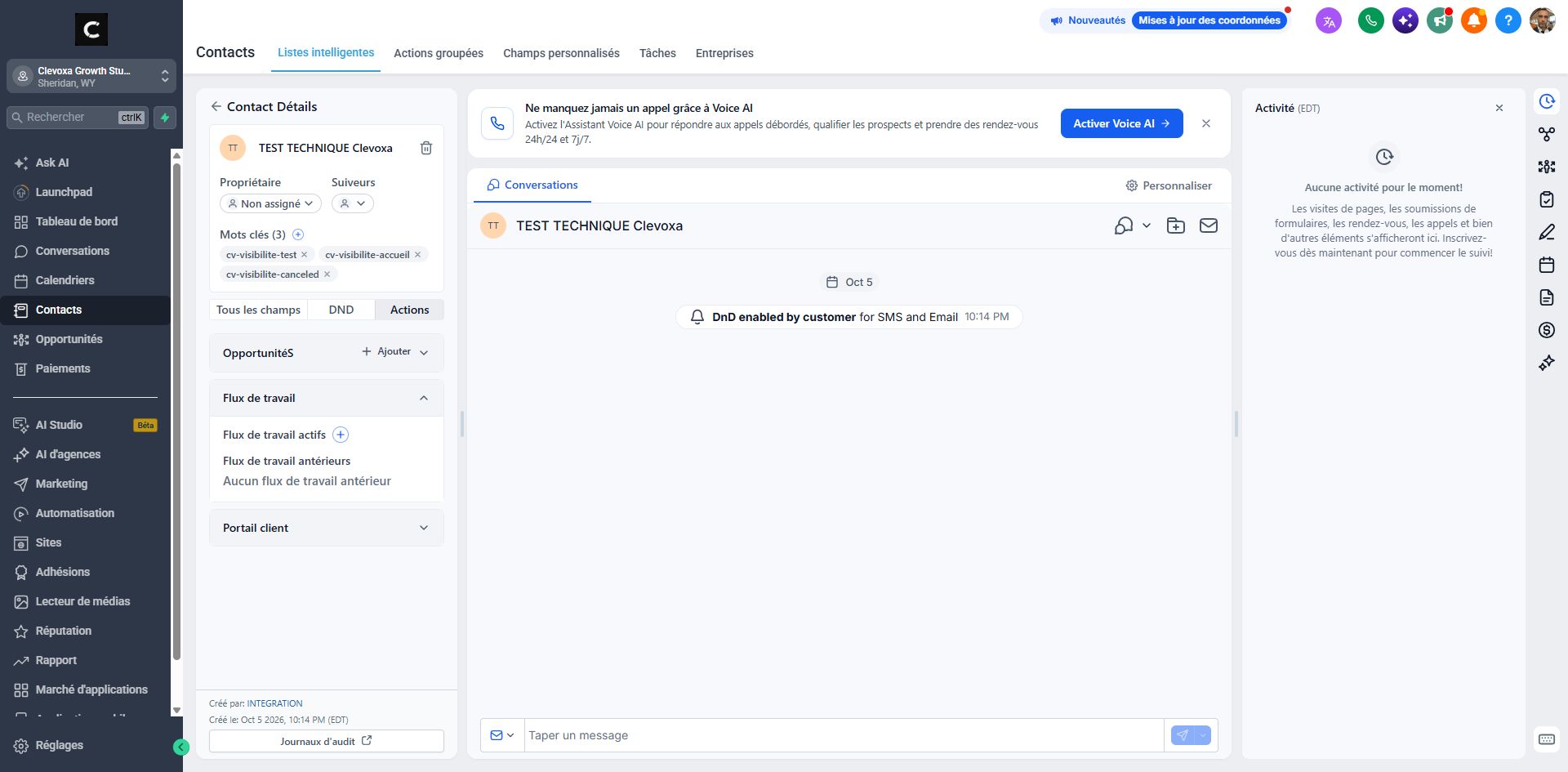
At the bottom of the thread, use the Email or SMS selector. For email, click “Write an email” or “Type a message” to expand the composer. “Internal Comment” is intended for your team.
Distinguish messages from internal notes
- Select Email or SMS to contact the customer, depending on available channels.
- Choose Internal Comment only when sharing information with your team.
An internal note does not replace a reply sent to the customer.
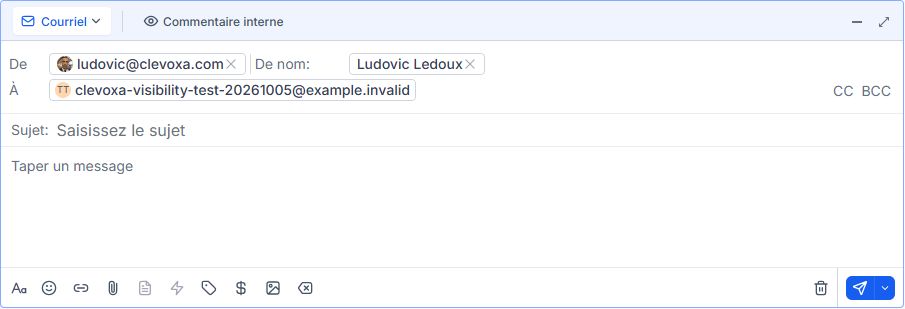
Check “From” and “To”. For email, fill in “Subject”, then write the message. The paperclip attaches a document. Review the content and recipient before sending.
Prepare a clear reply
- Review From and To; add a clear subject for email.
- Write a concise reply with a clear next action, then check any attachment.
Dates and times should be clear to the recipient, especially if they are in another time zone.
Click the blue paper-plane button at the bottom-right. Then check the message in the conversation history and any sending error. A message in the history does not by itself guarantee delivery.
Check after sending
- Send once, then find the message in the history.
- Read the status or error before trying again.
A message visible in the conversation does not prove the customer read it.
Frequently asked questions
The contact is missing from Unread.
Try All and check filters. A conversation already read may no longer appear under Unread.
The channel I need is missing.
Channels depend on connections and permissions. Ask Clevoxa to check the relevant channel.
The message has an error.
Note the error, channel and time. Check the recipient’s details and sending number or address before contacting Clevoxa.
A DND restriction appears.
Check the contact’s preferences. Do not override an opt-out; ask for clarification if the setting seems incorrect.
The customer is not receiving my email.
Check the address and sending status. Ask the customer to check spam. Have the sending connection checked if the issue continues.
My attachment will not upload.
Check the selected file and displayed error. Accepted formats and sizes depend on the channel; provide these details to Clevoxa.
I wrote an internal comment by mistake.
Check the displayed channel. If the customer needs a reply, compose it in the appropriate customer channel and review it before sending.
Can I resend immediately?
First check status and recent exchanges to avoid a duplicate. Understand any delay or error before retrying.
An example to adapt
Hi Alex, thank you for your enquiry. Would Thursday at 2 p.m. work for a 15-minute call to discuss your project?
If it does not work
An SMS will not send? Check the number, channel, sender and any DND restriction. Do not override a recipient’s communication refusal.
Check and understand the result
Drafted
The text is ready but still needs to be sent.
Sent
The message appears in the history; check its status.
Reply received
The customer replied; adjust the next action accordingly.
A complete example, from start to finish
- Alex asks about a service.
- I read the thread and choose email as the available channel.
- I check the recipient, explain the next step and review the attachment.
- After sending, I check the status and create a task if I need to follow up.
What to include when asking for help
Provide the contact, channel, sending time and error text or displayed status. Specify whether the problem affects one recipient or several.
Checkboxes are saved only in this browser. They do not perform any action in your CRM.
Open my workspace