
The Workflows panel in a contact record separates active and past automations. Use it to avoid manual follow-up when a message is already scheduled.
In your workspace
Contacts → record → Actions → Workflows
Follow this guide with interactive screenshots
Before you start
- Identify the contact, expected action and event that should have started the workflow.
- Note the event date and time, including the time zone if relevant.
- Review recent conversations to see what was already sent.
- Do not trigger another workflow just to check whether the first one works.
Check the result
You can distinguish messages already sent from actions still scheduled.
From Contacts → Smart Lists, find the person and open the record. In the left panel, select Actions, then expand Workflows. The screenshot shows a technical record with no active workflow.
View without enrolling
- Open the correct record, then Actions and Workflows.
- Read the displayed sections and note the relevant workflow name.
The + enrolls a contact; it does not open history.
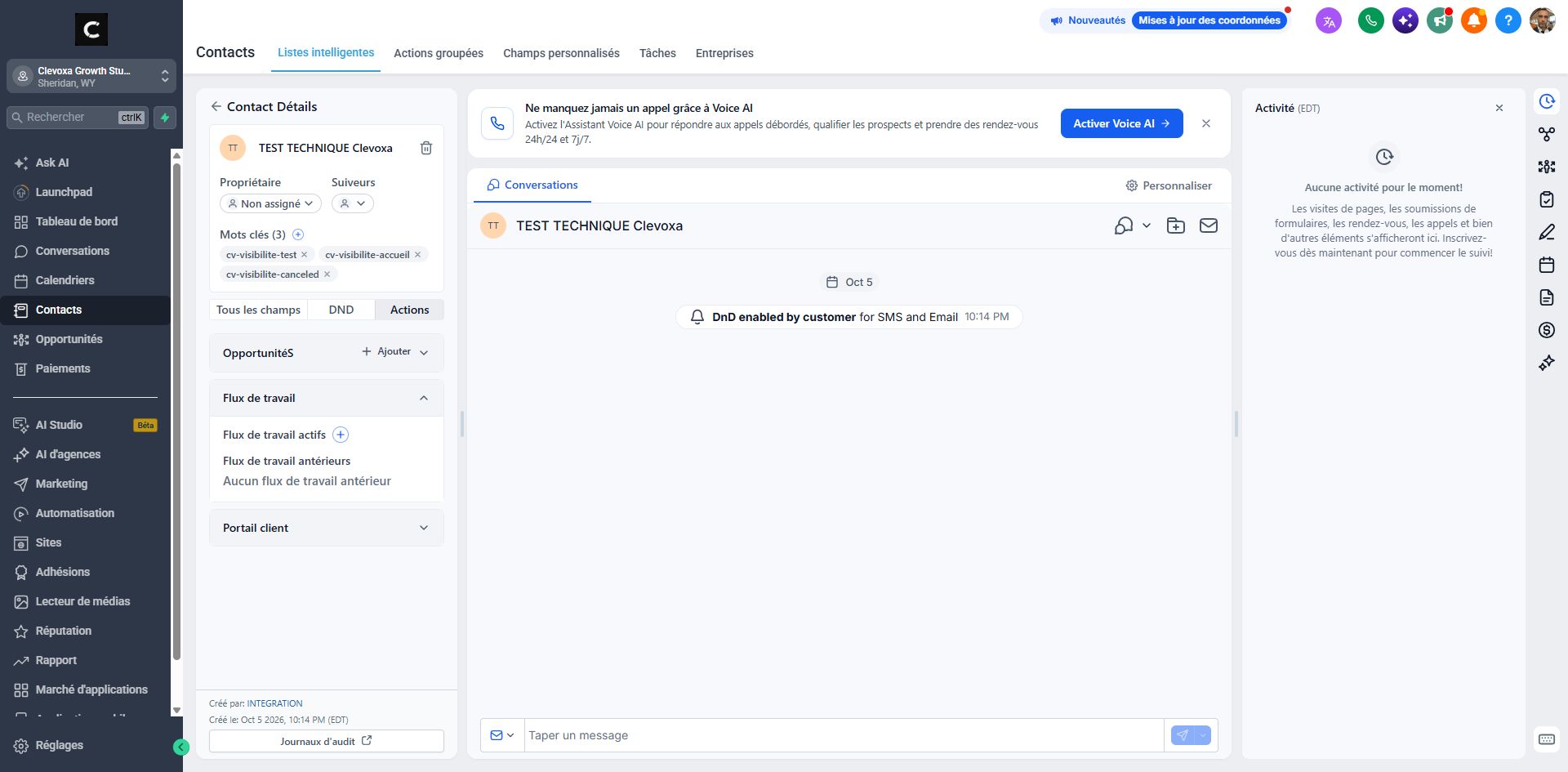
Active Workflows lists workflows the person is still enrolled in. An empty section means none is displayed there. The + button enrolls a contact; it is not a viewing control.
Understand an active workflow
- Find the active workflow associated with the expected action.
- An active workflow may be waiting for a date, delay or condition; ask for details if your access does not show them.
Active does not mean a message must be sent immediately.
Check Past Workflows if entries are displayed. A past workflow is not necessarily waiting to send another message. Compare it with the conversation history.
Compare past workflows and conversations
- Review past workflows when displayed.
- Compare that information with messages actually present in the conversation.
A past workflow does not prove that every action succeeded or a message was read.
Ask Clevoxa to inspect execution history and the scheduled time, or view it if your role allows access. Provide the contact, workflow name and expected action. Do not repeatedly enroll the contact to force a follow-up.
Have the specific issue checked
- Provide the contact, workflow, triggering event and approximate time.
- Ask whether the workflow is waiting, completed, stopped or failed, and what action is expected next.
Do not remove a tag or re-enroll the contact to force the system without checking the consequences.
Frequently asked questions
No active workflow appears.
Check the correct contact and past workflows. No displayed workflow alone does not establish whether the trigger was received or a workflow already ended.
The workflow is active but no message is sent.
A wait or condition may explain the delay. Have the current step and scheduled time checked before manual follow-up.
The workflow is listed among past workflows.
Compare with conversation history. Ask for execution details if you need to know which actions actually succeeded.
An action ran but the customer received nothing.
Have the message status, channel, destination and any communication restriction checked. Execution is not proof of receipt.
Can I use + to retry?
That button enrolls the contact in a workflow. Have Clevoxa confirm the action before using it to troubleshoot.
Does removing the tag stop the workflow?
Do not assume so. Behaviour depends on configured rules; ask for the running workflow to be checked.
Two similar messages were sent.
Note their times and channels. Have enrollments and possible manual sends checked before changing tags or workflows.
I want to change a delay or message.
Describe the desired result to Clevoxa and specify whether contacts are already waiting. A change may require checking workflows already in progress.
An example to adapt
After a booking, a workflow might send a confirmation, wait until the day before the appointment, then send a reminder. A waiting step does not mean the system is stuck.
If it does not work
An action is marked executed but the message is missing or failed? Ask for a channel and execution-detail check. Avoid repeatedly enrolling the same contact.
Check and understand the result
Trigger
The starting event, such as adding the avis-google tag.
Wait or action
The workflow follows configured delays and conditions.
Result
Execution and message delivery are checked separately.
A complete example, from start to finish
- I add avis-google to Alex’s record to start a review request.
- I confirm the tag is present and review the conversations.
- If the expected message is missing, I note the addition time and relevant workflow.
- I ask Clevoxa to check execution instead of adding the tag again.
What to include when asking for help
Provide the contact, workflow name, triggering event, its date and time, then the expected action and observed result. Include any visible status or error.
Checkboxes are saved only in this browser. They do not perform any action in your CRM.
Open my workspace