
To request a Google review, add the “avis-google” tag to the relevant contact. Adding this tag automatically starts the review-request workflow configured for your business.
In your workspace
Contacts → contact record → Tags → avis-google
Follow this guide with interactive screenshots

Before you start
- Open the correct business account and choose a customer whose service has been completed.
- Check that the name, email address and phone number belong to the customer. Duplicate records can split their history.
- Review recent conversations to see whether a review request has already been sent.
- Check whether the avis-google tag is already present. If it is, ask Clevoxa to check the history before trying again.
- Respect the contact’s communication preferences. Do not disable a messaging opt-out to send the request.

Check the result
The avis-google tag appears on the correct record. To confirm delivery, check the contact’s conversation history or ask Clevoxa to check the automation execution.
Open Contacts → Smart Lists. Search for the customer and open their record. Check their identity and contact details before triggering the request.
Find the correct record
- Use the contact search field to enter the name or a known contact detail.
- Open the matching record and compare contact details when several people share the same name.
- If the person is missing, first consult “Add and find a contact”.
The review request has not been triggered at this point.
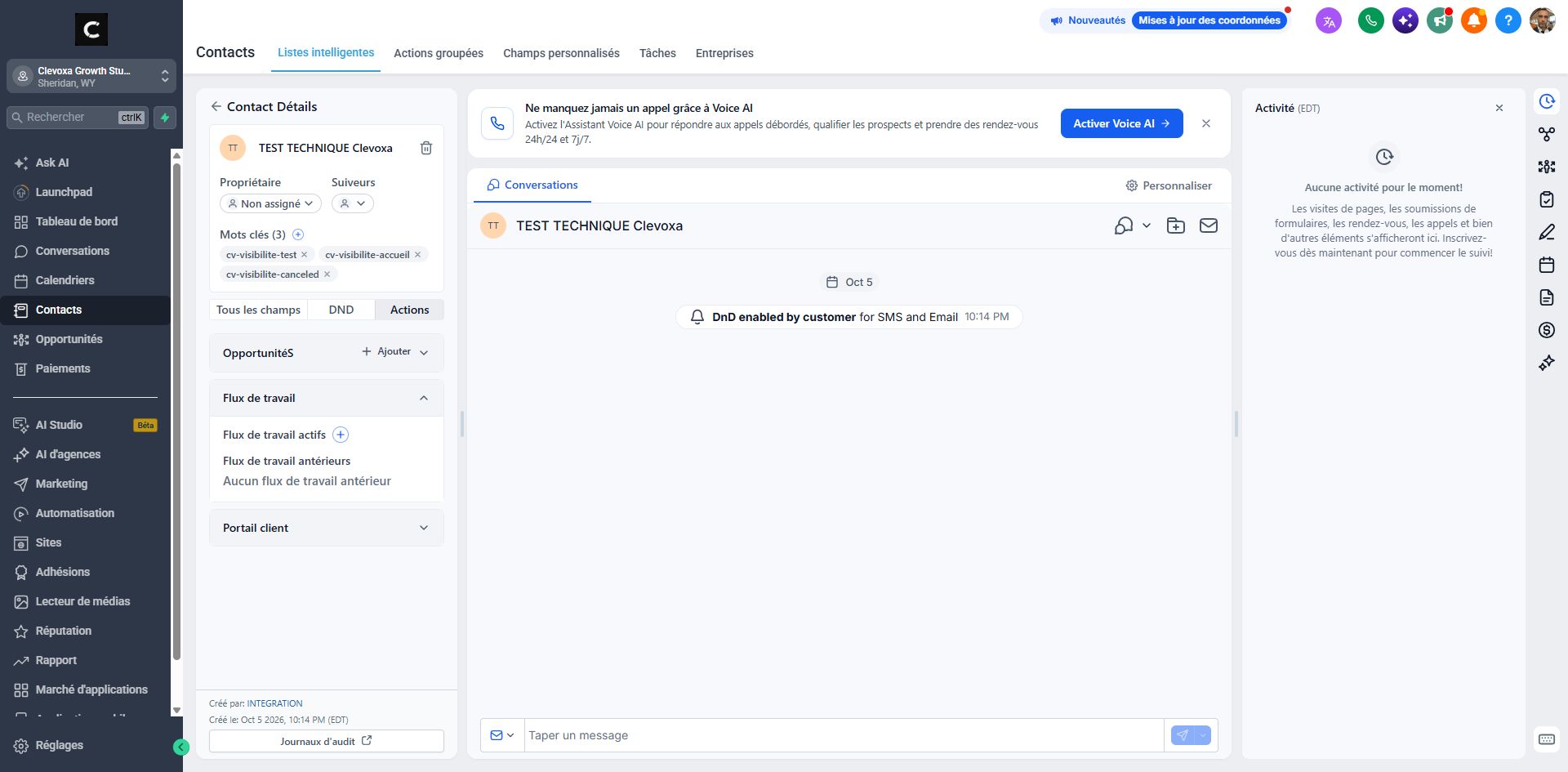
Find Tags below the contact’s name. In the French interface shown here, this section is labelled “Mots clés”. Click the + button next to the label to add a tag. The screenshot shows its location on a test record.
Locate the right button
- The French interface shown here calls tags “Mots clés”.
- Use the small + next to “Mots clés”, below the contact’s name and owner.
- This button adds a tag to the selected contact.
The screenshot is a test record. Its visible tags illustrate the location; they are not the tag to add.
Search for the existing “avis-google” tag and select it to add it to the contact. Use this exact tag, including the hyphen; do not translate it. Adding it triggers the automation, so you do not need to send a review request manually.
The action that triggers the request
- Search for avis-google in the tag selector.
- Select the existing tag spelled exactly avis-google.
- Make sure the tag then appears on the record. Do not create a variation such as “avis google” or “avis-google-2”.
Adding the tag is the trigger. Do not test this on a real customer unless you intend to start their review request.
Check that “avis-google” appears among the contact’s tags. The automation then takes over using its configured timing and channels. Seeing the tag confirms it was added; it does not prove the message has already been sent.
What to check next
- The tag is visible: its addition is confirmed.
- Look for the outgoing request in this contact’s conversations, depending on the configured channel.
- If no message appears, the configured waiting period may still be running. Clevoxa can check execution status and any errors.
Timing, channels, messages and any reminders depend on your automation. This guide does not assume immediate delivery.
Frequently asked questions
I cannot find the avis-google tag.
First check that you are in the correct business account. Search for the exact name in the tag selector. If it is still missing, contact Clevoxa. Creating a similar tag does not ensure it will be linked to the correct automation.
The tag is already on the record. What should I do?
Do not assume that the customer received the message or published a review. Review the history and ask Clevoxa to check the workflow. Do not remove and re-add the tag: re-entry rules vary and this could create another request.
The tag was added, but nothing seems to happen.
Check the contact, their details and communication preferences, then their conversations. The workflow may include a wait. If the usual delay has passed or is unknown, give Clevoxa the time the tag was added and the contact record so execution can be checked.
The message appears, but the customer has not received it.
Check the destination and message status. For email, ask the customer to check their spam folder. If an error is shown, contact Clevoxa with the error message. Do not send repeated requests as a test.
I added the tag to the wrong contact.
Contact Clevoxa promptly with the record and the time of the action. Removing the tag does not guarantee that a running workflow will stop, and it cannot recall a message already sent.
The customer has already left a review.
Avoid starting another request for the same service. If the workflow is already running, ask Clevoxa whether any action is needed.
Can I change the message, channel or delay?
These settings belong to the automation. Tell Clevoxa what you would like to change. The tag starts the existing workflow; it does not let you choose these settings on the contact record.
Can I add the tag to several contacts at once?
This guide covers an individual request. A bulk tag action could start several workflows. Have Clevoxa check your selection and configuration before using a bulk action.
An example to adapt
After Alex Martin’s appointment, I open the contact record and add the “avis-google” tag. The automation handles the Google review request.
If it does not work
Cannot find the tag, is it already present, or is no message being sent? Contact Clevoxa to check the configuration and automation history. Do not remove and re-add the tag to try to restart the request.
Understand your request’s progress
Tag added
You have performed the starting action. This does not confirm that the message was sent or received.
Request sent
An outgoing message appears in the history. Check its status: sending does not prove it was read.
Review published
The customer has actually submitted a review. Clicking the link does not mean a review has been published.
A complete example: after Alex’s appointment
- The appointment is complete. I open Alex Martin’s record and check the email address and phone number.
- I review recent conversations and tags to avoid an unnecessary repeat request.
- I click + under Tags, then select avis-google.
- I let the automated workflow run. If I need to confirm delivery, I check the conversations or ask Clevoxa to verify it.
What to include when asking for help
Tell Clevoxa your business, the relevant contact record, the approximate date and time you added the tag, what you expected and what you see. Include the status or error text and a screenshot limited to the relevant area.
Checkboxes are saved only in this browser. They do not perform any action in your CRM.
Open my workspace