
The general task list is under Contacts → Tasks. Add Task opens the New Task panel; in the French interface, the button currently reads “Ajouter Task”.
In your workspace
Contacts → Tasks → Add Task
Follow this guide with interactive screenshots
Before you start
- Define a concrete action and the person responsible for it.
- Choose a realistic due date and time.
- Identify the contact record to link if the task concerns a customer.
- Check that an equivalent task does not already exist.
Check the result
The task appears with the right contact, owner and due date.
In Contacts, click the Tasks tab at the top, then Add Task. You can also open a person’s tasks from their contact record.
Create an internal follow-up
- Open Contacts → Tasks, then Add Task.
- Check the New Task panel before entering the action.
A task organizes your work; it does not book a customer appointment.
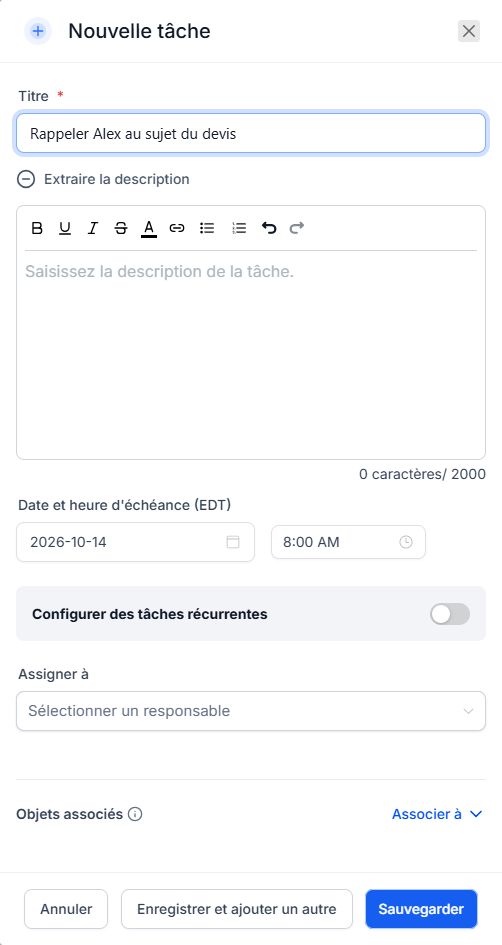
Enter a specific action in Title, such as “Call Alex about the quote”. Add useful context in the description. A task is internal follow-up; it does not send an SMS or email to the customer.
Write an actionable task
- Start the title with a verb: call, check, prepare or confirm.
- Add context in the description: quote topic, question to ask or expected result.
A title such as “Follow-up” alone gives a colleague little guidance.
Set Due Date and Time, checking the displayed time zone. Select the owner under Assign To. Use Associate With to link the right contact.
Make responsibility clear
- Choose a due date and check the displayed time.
- Fill in Assign To and Associate With to link the owner and contact.
Creating a task does not guarantee a notification; notifications depend on account settings.
Click Save. Find the task under All, Due Today, Overdue or Upcoming. After completing the action, mark it complete. Check Owner and Status filters if it seems missing.
Complete the follow-up
- After saving, find the task in the list using appropriate filters.
- Perform the action, then mark the task complete; if postponed, update its due date.
Completing a task does not mean a message was sent or an appointment created.
Frequently asked questions
My task is not showing.
Check owner, status and date filters. Look under All and completed tasks if needed.
The task is overdue.
Perform the action or update the due date to reflect reality. Do not mark it complete just to remove it from view.
The wrong colleague is assigned.
Open the task, correct the owner and verify the change. Make sure the person knows what follow-up is expected.
The wrong contact is linked.
Correct the link on the existing task and review its title and description.
Does the customer receive the task?
A task is internal follow-up. To inform the customer, separately use Conversations with the appropriate channel.
I did not receive a reminder.
Check the due date, owner and notification settings with Clevoxa. Review your task list even if no notification arrives.
Should I create a task or an appointment?
Use a task for an action to perform; use an appointment for a booking with a time slot and calendar.
I completed the task by mistake.
Find it using the completed-task filter and use the available option to restore its state. If unavailable, contact Clevoxa.
An example to adapt
Task: “Call Alex to confirm the quote”. Owner: me. Due: Thursday at 3 p.m. Note: “Ask whether both options meet the need.”
If it does not work
Cannot see the task? Check owner, date and status filters, including completed tasks.
Check and understand the result
Action
The title clearly states what needs to be done.
Owner and due date
Someone knows when to perform the follow-up.
Completed
The status is updated after the actual action.
A complete example, from start to finish
- I need to call Alex on Thursday to clarify the quote.
- I create “Call Alex - quote options” and describe the questions to ask.
- I assign the task to myself, link Alex and set Thursday at 3 p.m.
- After the call, I complete the task and create another follow-up only if needed.
What to include when asking for help
Provide the task title, linked contact, owner, due date and active filters. For a missing reminder, specify the expected channel.
Checkboxes are saved only in this browser. They do not perform any action in your CRM.
Open my workspace