
The real form separates Pipeline, Stage and Status. Pipeline is the sales process, Stage is the column, and Status is the outcome.
In your workspace
Opportunities → Add Opportunity → Pipeline / Stage / Status
Follow this guide with interactive screenshots

Before you start
- Identify the contact record and sales project to track.
- Check that an opportunity for the same project does not already exist.
- Choose the pipeline that fits your business and prepare the next action.
- Prepare an estimated value only if you have a reliable basis.

Check the result
The opportunity is in the right pipeline, with a stage and status that match the actual situation.
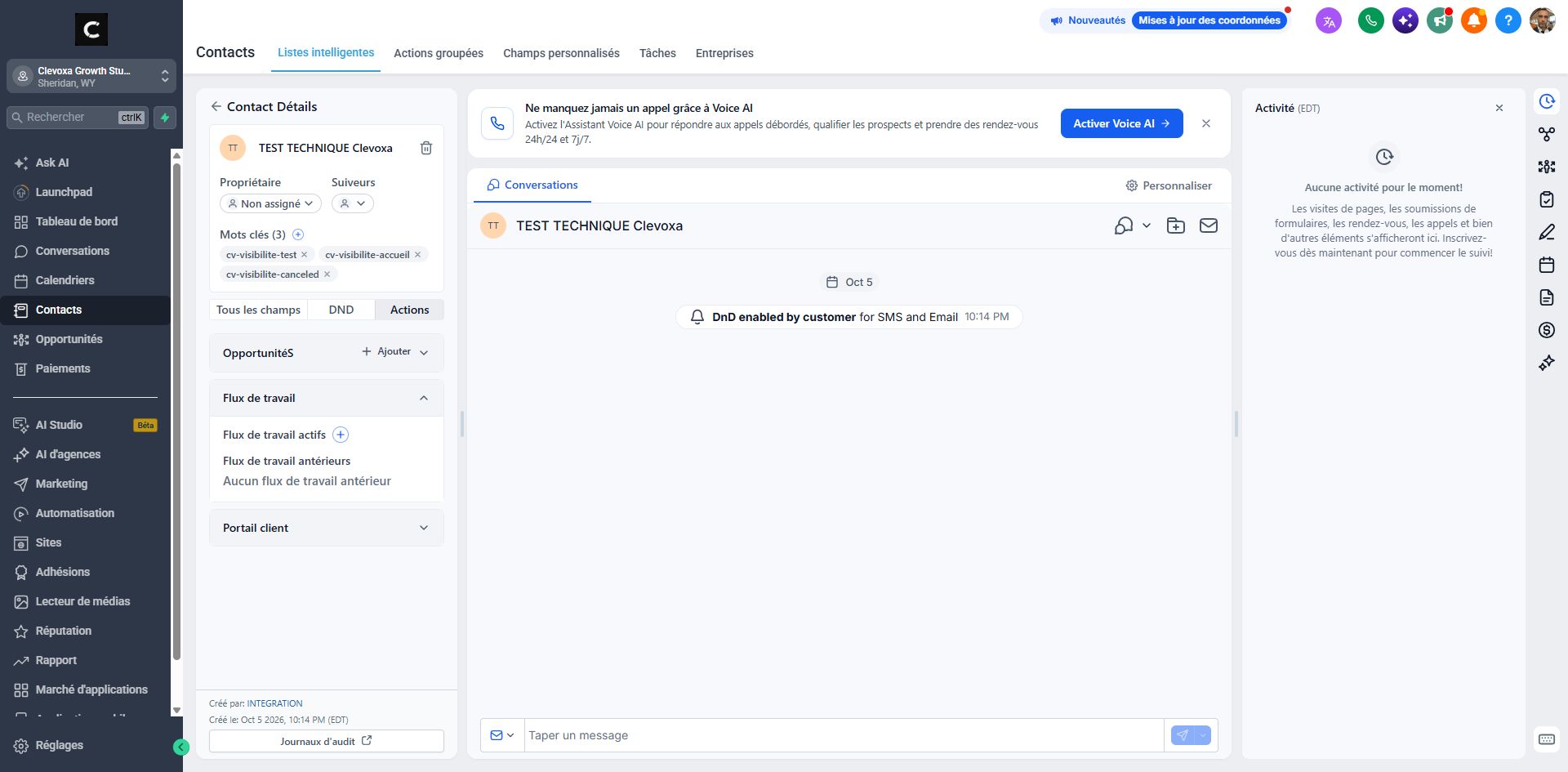
In Opportunities, select the pipeline at the top of the page, then click “Add Opportunity”. The form shown in the screenshot opens.
Find the right pipeline
- Check the pipeline selector and filters before creating a record.
- Use Add Opportunity when the project is not already present.
Column names vary with your sales process.
Select “Primary Contact Name”, then enter “Opportunity Name”. Use a clear project name, such as “Alex Martin - Maintenance quote”. The email and phone relate to the selected contact.
Name the project so it is easy to find
- Select the existing primary contact and check their details.
- Choose a descriptive name: customer, service or project.
Two separate projects for the same person should be easy to distinguish.
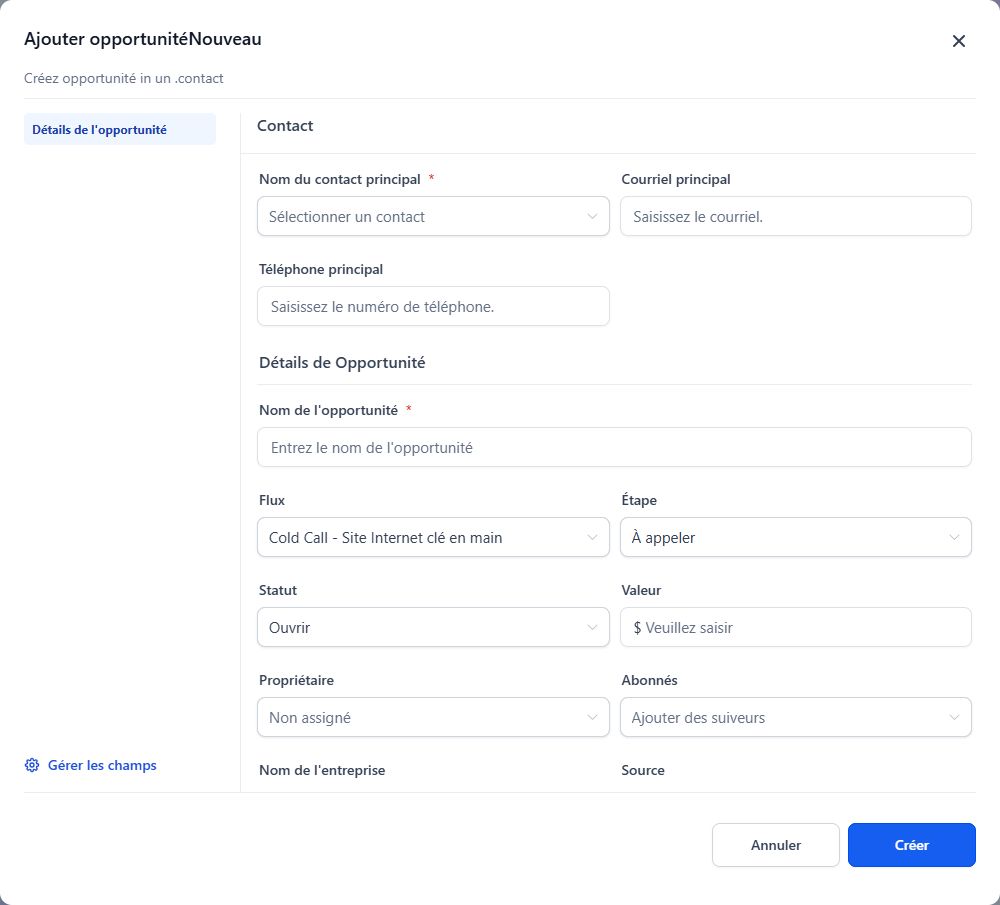
Select Pipeline and Stage, add a Value if known, and assign an Owner. Click “Create” at the bottom-right. Available stages depend on the pipeline configured for your business.
Assign the next stage
- Choose Pipeline, then a Stage that describes the current situation.
- Set the owner and a known value, then create the record.
A sales value is not proof that payment was received.
For an existing record, open its card to change Stage or Status. A “Quote sent” stage is different from a Won status. Mark a sale won only after confirmation; a change can trigger an automation.
Keep tracking up to date
- Open the existing card when the project progresses.
- Update the stage or status according to what actually happened and verify the save.
Some changes can trigger an automated workflow configured for your business.
Frequently asked questions
I cannot see my opportunity.
Check the pipeline, owner and status filters before recreating the record.
What is the difference between Pipeline, Stage and Status?
Pipeline is the process; Stage is the current column; Status describes the outcome or state. Check all three separately.
The columns have different names from the example.
Stages are customized for your business. Choose the one that matches the actual project stage.
What amount should I enter?
Use a known project value or an estimate understood by your team. Do not use it as proof of payment.
Who should own the opportunity?
Assign the record to the person responsible for follow-up. Check that they have the necessary access.
I created a duplicate.
Compare the contact, project and history before deleting anything. Ask which record to keep if you are unsure.
Does moving a card send a message?
That depends on configured automations. Have the triggers checked if you do not know the consequences of the change.
Is a won project automatically paid?
No: the sales outcome and payment are different information. Check payment in the appropriate records.
An example to adapt
For a
If it does not work
A card disappeared? Check filters and status first. Do not recreate it immediately: it may simply be hidden.
Check and understand the result
Pipeline
The sales process the project belongs to.
Stage
The project’s current position within that process.
Status
The record’s outcome or state, distinct from its column.
A complete example, from start to finish
- Alex requests a maintenance quote.
- I create “Alex Martin - Maintenance” in the appropriate pipeline.
- When the quote is actually sent, I update the stage and schedule follow-up.
- When the decision is confirmed, I update the status without treating it as a payment record.
What to include when asking for help
Provide the contact, project name, pipeline, active filters and expected change. If a card disappeared, specify its previous status.
Checkboxes are saved only in this browser. They do not perform any action in your CRM.
Open my workspace