
Work on the existing booking to preserve its history. Rescheduling changes the slot; cancellation changes the appointment state. Check notifications and reminders afterwards.
In your workspace
Calendars → existing appointment → edit or status
Follow this guide with interactive screenshots

Before you start
- Confirm the requested change with the customer.
- Note the old slot, any new slot and the time zone.
Check the result
Check the result in your workspace. The guide does not perform these actions for you.
Open Calendars, find the appointment by date and contact, then open its details. In list view, check calendar and date filters. Compare the contact, service and slot before editing.
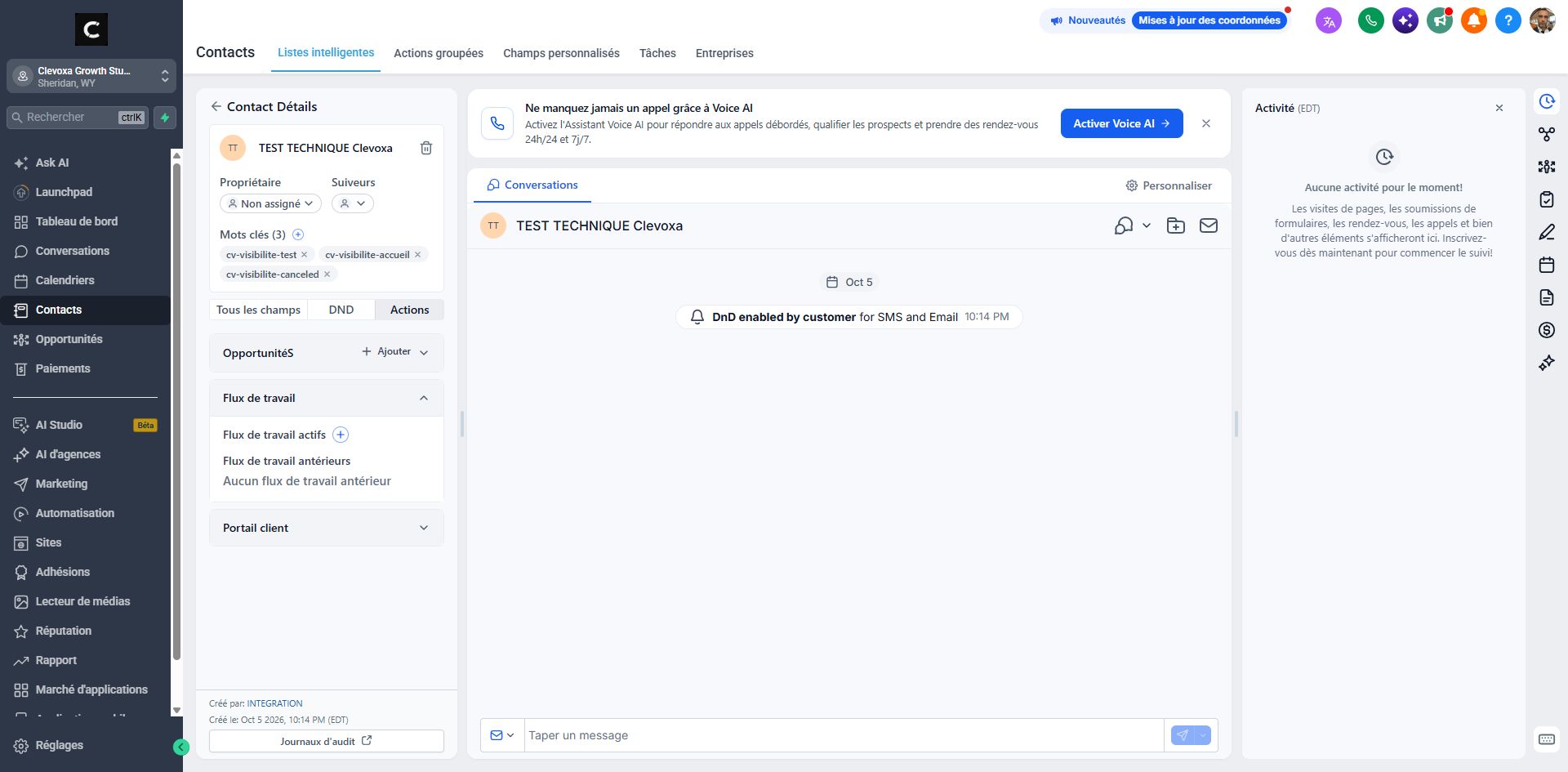
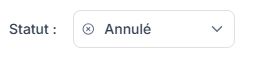
In the View details panel, the pencil icon opens editing. To cancel, use the Cancelled status when available. The trash icon deletes the booking; it is not the reschedule or cancel command.

For a reschedule, check the date, time zone, time, duration and assigned person, then save. For cancellation, review the affected booking before confirming. Some status changes save immediately.
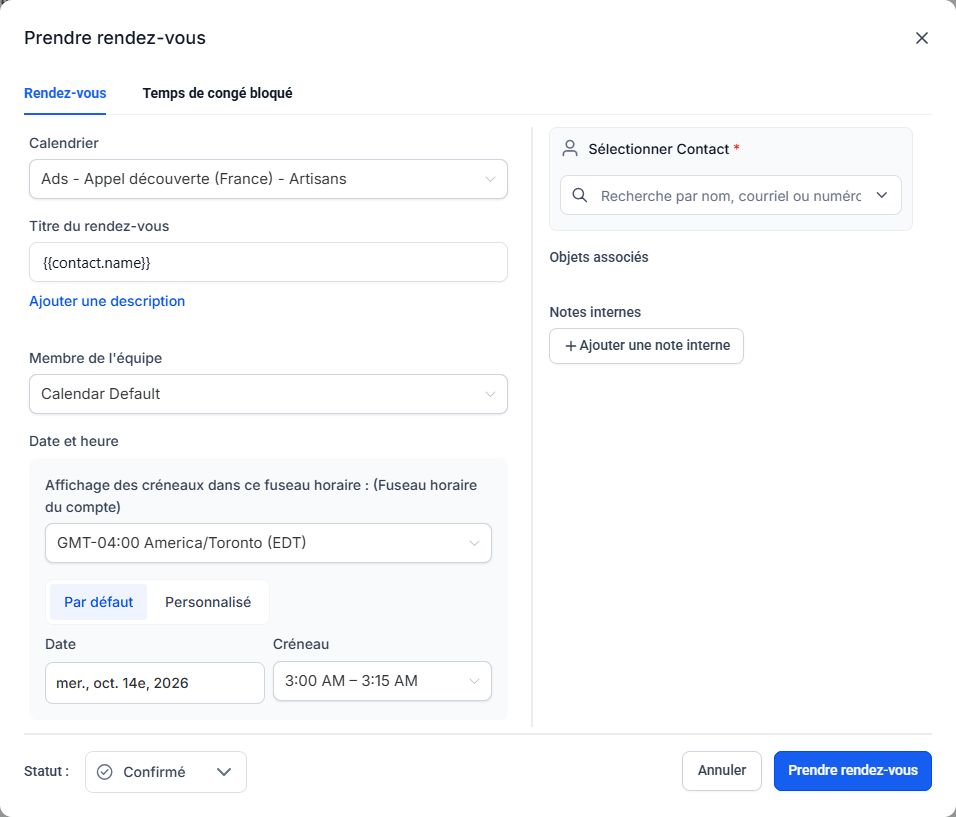
Find the appointment and check its new slot or status. Review conversations for any notification sent. Ask Clevoxa to check pending reminders if you do not know how your automation handles the change.
Frequently asked questions
I cannot find the booking.
Check the displayed date range, calendar, owner and filters. Also check cancelled appointments if needed.
The edit button is missing.
Actions depend on permissions and booking type. Ask Clevoxa to check rather than creating a duplicate.
The appointment repeats.
Read the action scope: one occurrence or the whole series. Do not confirm if it differs from the intended change.
The customer paid for the booking.
Check editing restrictions and payment records with Clevoxa. Cancelling an appointment does not confirm a refund.
An old reminder is still scheduled.
Send Clevoxa the contact, both slots and workflow name so upcoming actions can be checked.
An example to adapt
Alex moves a call from Thursday to Friday. I open the existing appointment, change the slot, then check the booking and reminders.
If it does not work
Use the guided troubleshooter or prepare a support request from the current step.
Keep the right distinction
Reschedule
The slot changes on the existing booking.
Cancellation
The status indicates that the appointment is cancelled.
Reminders
Upcoming automated actions still need to be checked.
Your next action
- Find the appointment and check its new slot or status. Review conversations for any notification sent. Ask Clevoxa to check pending reminders if you do not know how your automation handles the change.
Get help with your situation
Use “Help with this step” to prepare an email including the guide and step. Add the details of your issue before sending.
Checkboxes are saved only in this browser. They do not perform any action in your CRM.
Open my workspace