
This is the actual navigation menu of your Clevoxa CRM. Use it to move between contact records, conversations, appointments and sales tracking.
In your workspace
app.clevoxa.com → business → sidebar
Follow this guide with interactive screenshots

Before you start
- Have the email address associated with your Clevoxa access and your usual sign-in method ready.
- If you manage several businesses, identify the one you need to work in.
- Keep this guide in one tab and your workspace in another.
- Choose a simple first action: read a message, find a contact or check an appointment.

Check the result
You can identify your business and find the menus you need.
Open app.clevoxa.com with your workspace credentials. After signing in, you enter your business account. The screenshot shows the account selector in the upper-left corner.
Access your workspace
- Enter app.clevoxa.com in your browser, then use your personal sign-in.
- Wait until your business name is visible before starting work.
The public Clevoxa website and your workspace are separate pages.
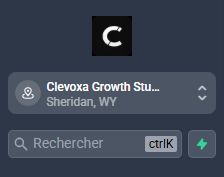
Click the business name in the upper-left corner if you can access more than one account. Select your business before viewing or editing a record.
Check your context
- Find the business selector in the upper-left corner.
- If several businesses are listed, select the one associated with the customer you will handle.
The wrong account can explain an empty contact list or different menus.
Use the sidebar: Conversations for messages, Calendars for bookings, Contacts for records, and Opportunities for potential sales. Icons remain visible when the sidebar is collapsed.
Choose a menu for your task
- Contacts helps you find a person; Conversations lets you read and send their messages.
- Calendars handles appointments; Opportunities tracks projects; Tasks tracks actions to complete.
A contact record, a sales project and an appointment are separate items.
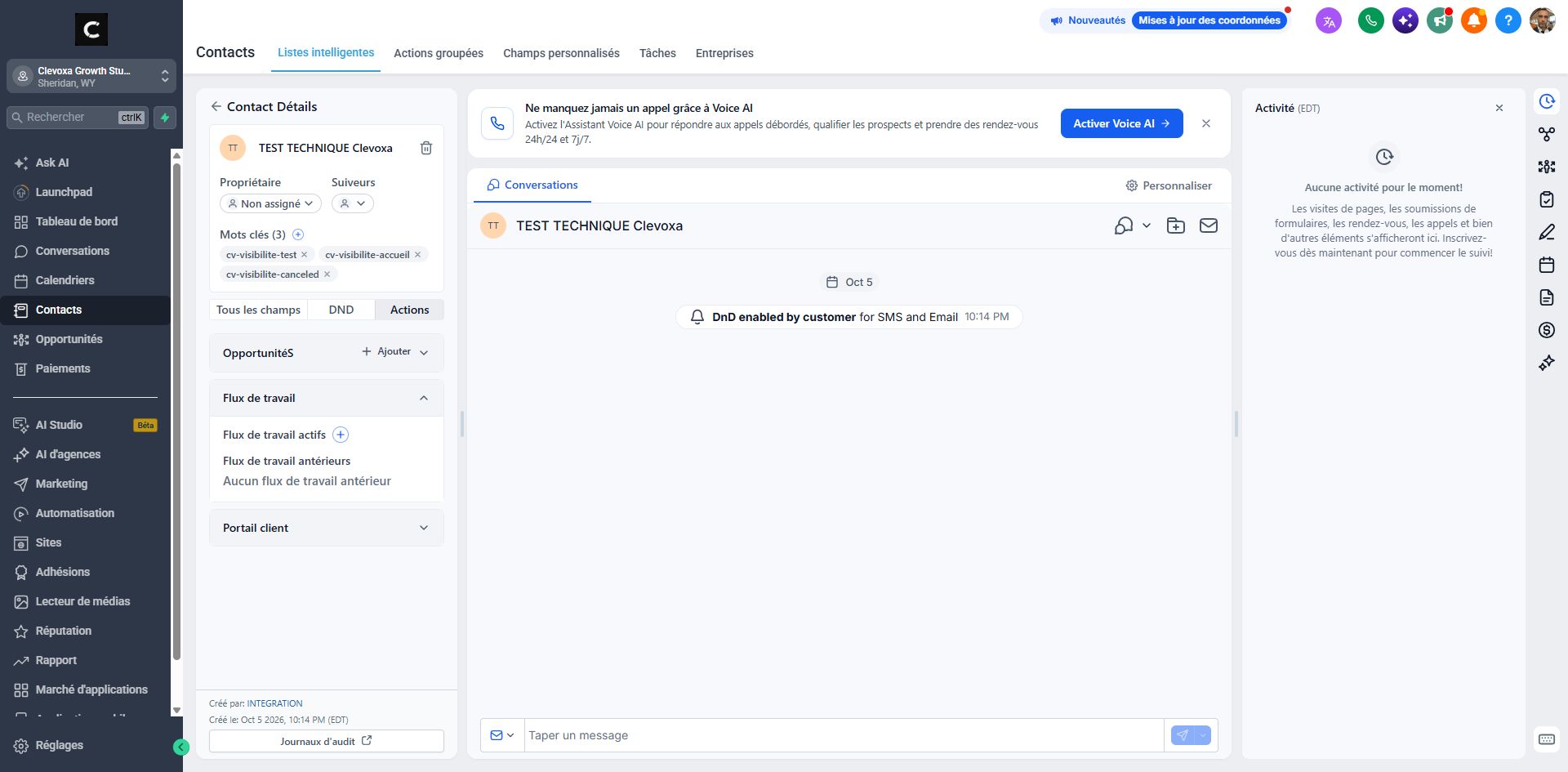
Open Conversations to handle incoming requests, then Calendars to review bookings. To find a person and their history, open Contacts → Smart Lists.
Build a routine
- Read recent exchanges before replying, then check today’s appointments.
- Review due tasks and projects that need follow-up.
Viewing a record is different from sending a message or adding a tag.
Frequently asked questions
I cannot sign in.
Check the sign-in address and associated account. Use the password recovery option on the sign-in page if needed. If access remains blocked, contact Clevoxa without sharing your password.
My business is not listed.
Check that you are using the correct personal sign-in. Clevoxa can confirm which businesses are linked to it.
A menu is missing.
Check the selected business. Available menus depend on your permissions and plan; ask Clevoxa to confirm the setting.
I only see icons on the left.
The navigation bar may be collapsed. Use the label shown on hover if available, or enlarge the window for easier navigation.
The screens differ from the screenshots.
The screenshots show a French interface and a test account. Names, data, permissions and settings may differ; follow the menu path and field name.
My list looks empty.
Check the account, search text and active filters before assuming data is missing.
Can I work with a colleague?
Ask Clevoxa for suitable access for each team member. Check record ownership and recent conversations to avoid handling the same request twice.
What should I tell support?
Provide the business, affected menu and displayed message. A screenshot of the issue usually helps clarify the problem.
An example to adapt
Every morning: read new messages, check appointments, then review the prospects I need to call back.
If it does not work
Missing a menu? Check the selected account, then ask Clevoxa to confirm your access.
Check and understand the result
Business
The displayed name matches the account you want to work in.
Menu
You know where to find the intended action.
Record
You have identified the correct contact before making changes.
A complete example, from start to finish
- I sign in and check my business name.
- I read Alex’s latest message in Conversations.
- I check Alex’s appointment in Calendars.
- I find Alex’s record in Contacts and create a task if follow-up is needed.
What to include when asking for help
Provide your business, sign-in email, the menu you need and the message you encountered. Never share your password.
Checkboxes are saved only in this browser. They do not perform any action in your CRM.
Open my workspace