
Follow these four actions at your own pace. Check an action only after completing it in your workspace. Progress stays in this browser; this page does not perform CRM actions.
In your workspace
Account → Contact → Message → Appointment
Follow this guide with interactive screenshots

Before you start
- Prepare your access and a real task to complete.
- Keep help in one tab and your workspace in another.
Check the result
Check the result in your workspace. The guide does not perform these actions for you.
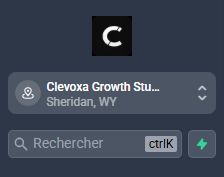
Open your workspace, check your business name and locate Contacts, Conversations and Calendars.
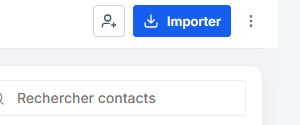
Search for someone whose record you actually need to handle. Reuse the record if it exists; otherwise create it using the provided details.
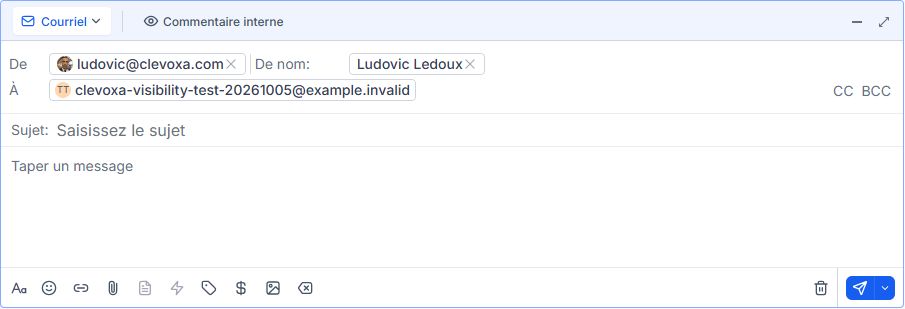
Open the conversation, read its history and choose the correct channel. Review From, To and the text. Send only if a reply is needed.
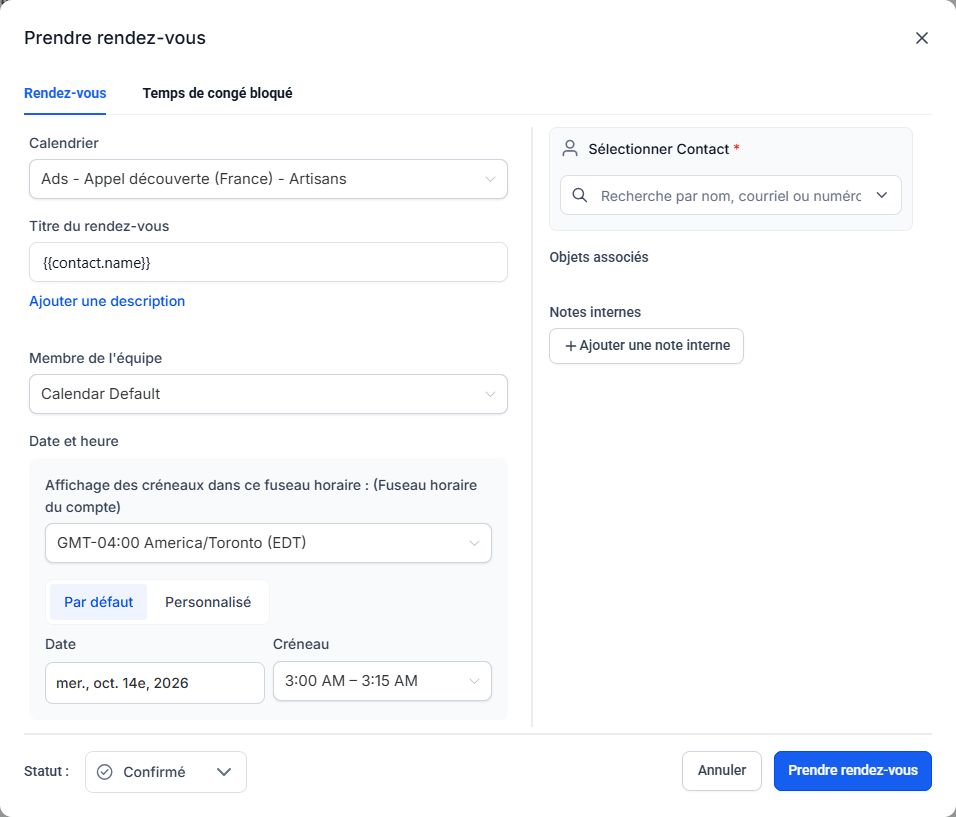
For a booking agreed with the customer, choose the contact, calendar, slot and time zone. Save, then find the booking in the calendar.
Frequently asked questions
Must I complete everything at once?
No. Progress is kept in this browser if local storage is available. You can return later.
Does checking a box change my account?
No. It is a personal checklist. Perform the action in your workspace before checking it.
I am switching devices.
Checkboxes do not sync across devices. Resume at the step matching your actual progress.
I have no appointment to create.
Read the guide without saving a fake booking. Check this action when you make your first real booking.
An example to adapt
I start by finding Alex, reply to the enquiry, then book the agreed slot.
If it does not work
Use the guided troubleshooter or prepare a support request from the current step.
Keep the right distinction
Understand
Reading the guide prepares you for the action.
Perform
The action happens in your workspace.
Check off
Your checkbox records what you have completed.
Your next action
- For a booking agreed with the customer, choose the contact, calendar, slot and time zone. Save, then find the booking in the calendar.
Get help with your situation
Use “Help with this step” to prepare an email including the guide and step. Add the details of your issue before sending.
Checkboxes are saved only in this browser. They do not perform any action in your CRM.
Open my workspace